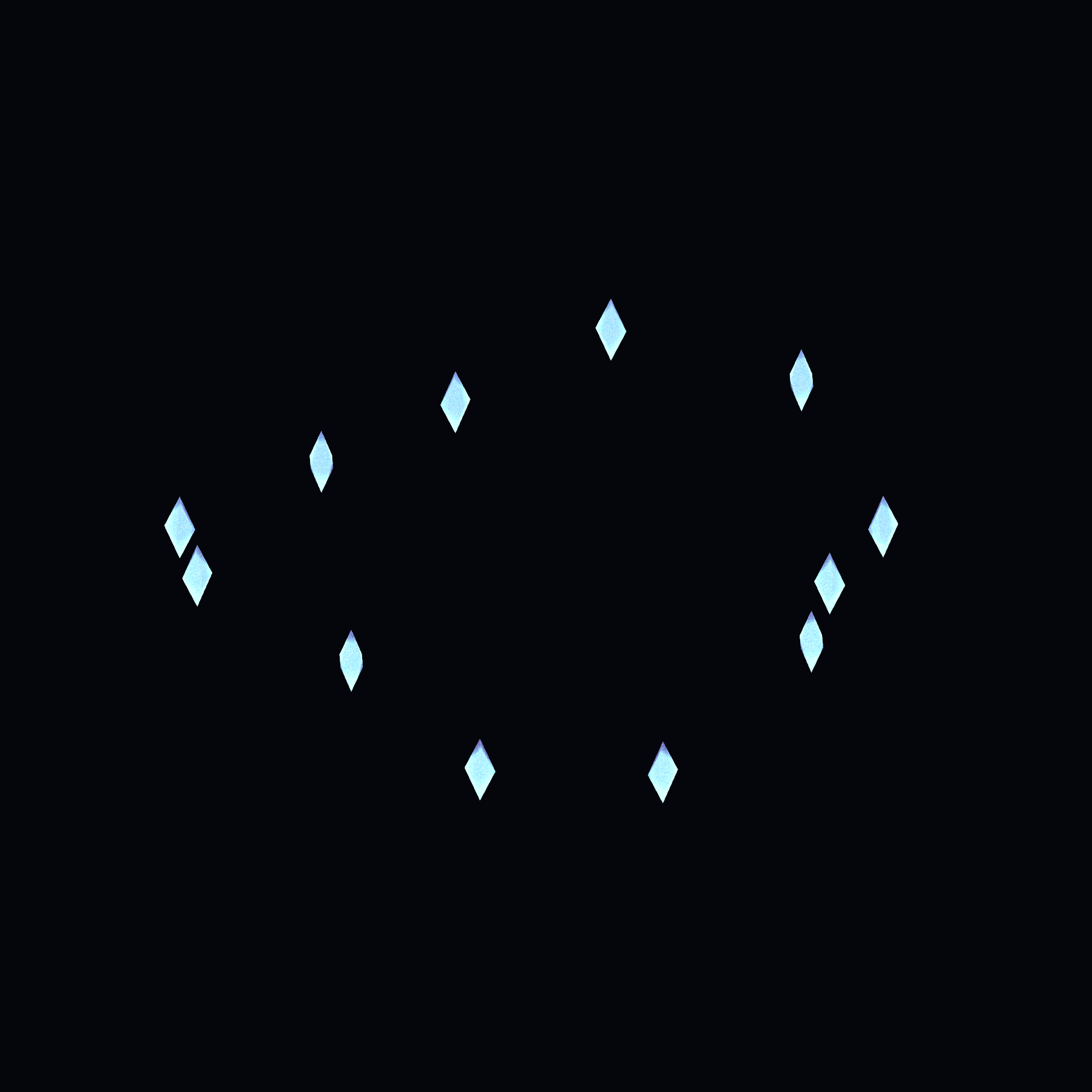
01Get started
Back up your Unity project before editing. This guide is based on Unity 2022.3 and the Built-in Render Pipeline. Check the BOOTH listing for current requirements and terms.
Import and open
Extract the downloaded ZIP and import its .unitypackage into Unity. Once compilation finishes, choose
黒猫Dev > Halo Loomfrom the top menu.Assign your Avatar and attachment
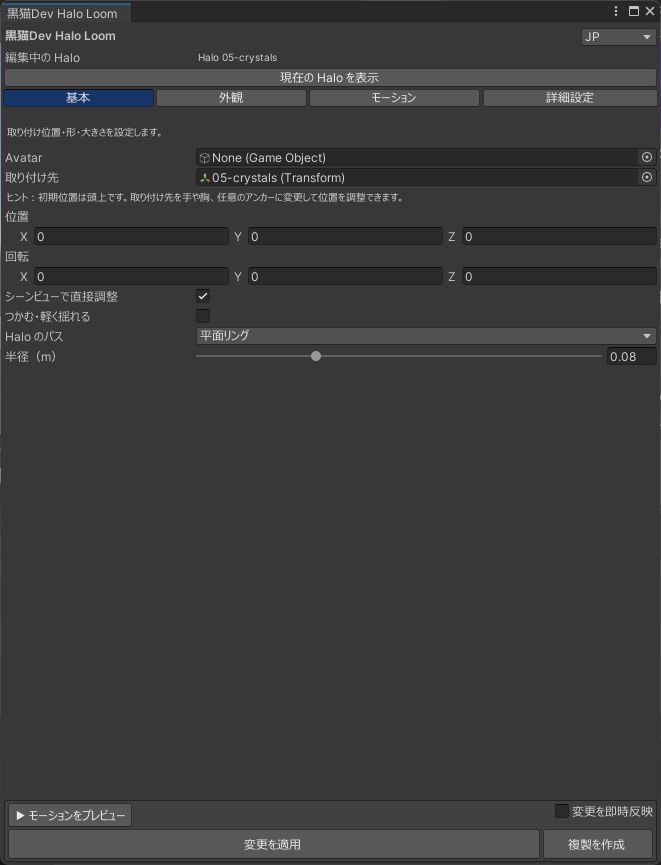
In Basic, drag the scene Avatar root from the Hierarchy into Avatar. A valid Humanoid initially uses Head. If Head cannot be resolved, assign the attachment Transform yourself.
Set position and size
Adjust Position, Rotation and Radius, or enable Adjust in Scene View. Start with a small radius and check for overlap with the head and ears.
Choose the appearance
In Appearance, choose base effects, ornaments, or a mix of both. Adjust color, count and size. For your own models, see Custom assets & attachment below.
Choose the motion
In Motion, select a category and preset, then adjust loop duration. A starfield-only halo instead uses twinkle, movement and trails.
Create and preview
Click Create Halo, then Preview Motion. When editing an existing halo, apply your changes before previewing.
Save and check in use
Save your Unity scene. For VRChat avatars, also check with the SDK’s Build & Test. Keep the Generated assets referenced by any halo still in use.
02Four workspaces
Separate where the halo sits, what it looks like, and how it moves.
Basic
Set Avatar, attachment, position, rotation and radius. Locate Current Halo selects and highlights the object in the Hierarchy without changing the Scene view zoom.
Appearance
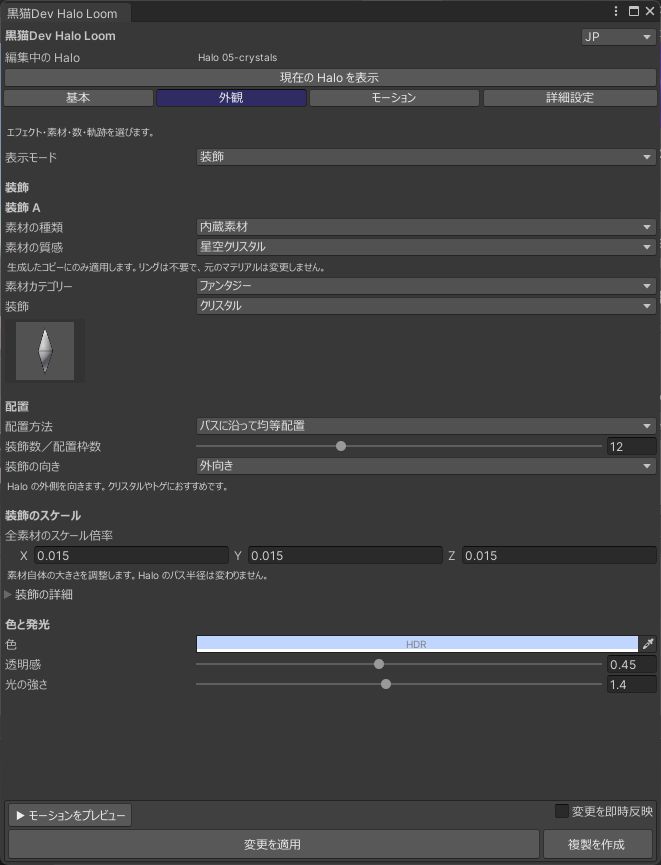
Choose base effects, ornaments or both. Set materials, color, count, size, transparency and trails. Available controls depend on the current style.
Motion
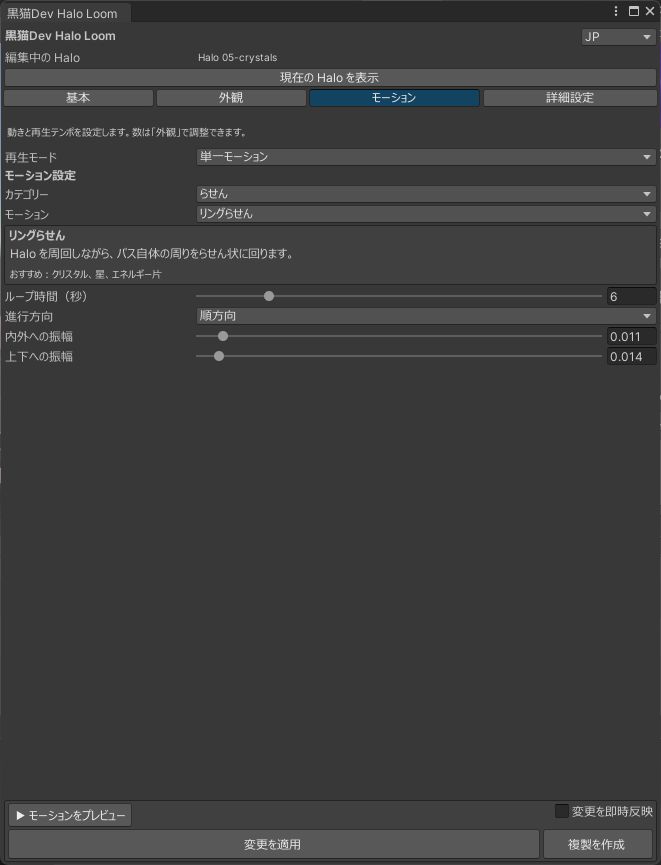
Choose motion and loop duration. Read the description to see what a preset does. Adjust object count in Appearance.
Advanced
Fine-tune seeds, motion details, phase timing, materials and bake quality. Defaults are a good starting point.
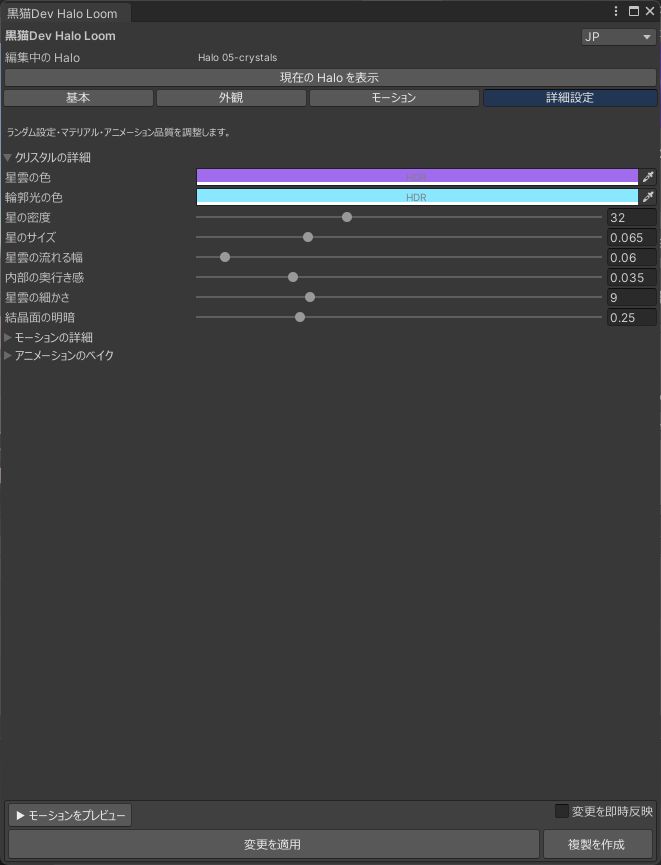
Screenshots show the Pro Japanese UI, captured on 2026-10-01. Avatar is empty because these are isolated effect demonstrations; assign your Avatar when attaching to a character. Controls vary with settings.
03Custom assets & attachment
Pro supports your own small props as well as stars and crystals. Make something elegant, playful, or a little unexpected.
- In Appearance, choose Ornaments or a mix of effects and ornaments.
- Select Custom as the asset source and assign a Prefab from the Project window, not a scene instance from the Hierarchy. You can use Mesh + Material instead.
- Set count, placement and scale. Radius changes the orbit; ornament scale changes the asset itself.
- Choose Follow Path, Face Outward, Face Center or another orientation. Adjust the rotation offset when the model’s own forward axis does not match.
- Choose motion, then create or apply. Generated instances are used; the original Prefab, Mesh and Material assets are not edited.
Not just above the head
In Basic, change the attachment to a wrist, chest, back Transform or your own anchor. Adjust local position, rotation and radius to suit the location. This is manual placement, not automatic fitting to each body part.
Can the asset play its own animation?
An optional Generic AnimationClip can animate the asset independently of the outer halo motion. Bindings must be relative to the asset root. Humanoid clips, Animation Events and mismatched bindings are not supported. If the Prefab already has an Animator Controller or legacy Animation, leave the extra clip empty to preserve that setup, or provide an asset without a controller. Editor preview of third-party Animator setups is not guaranteed.
04Effects & motion
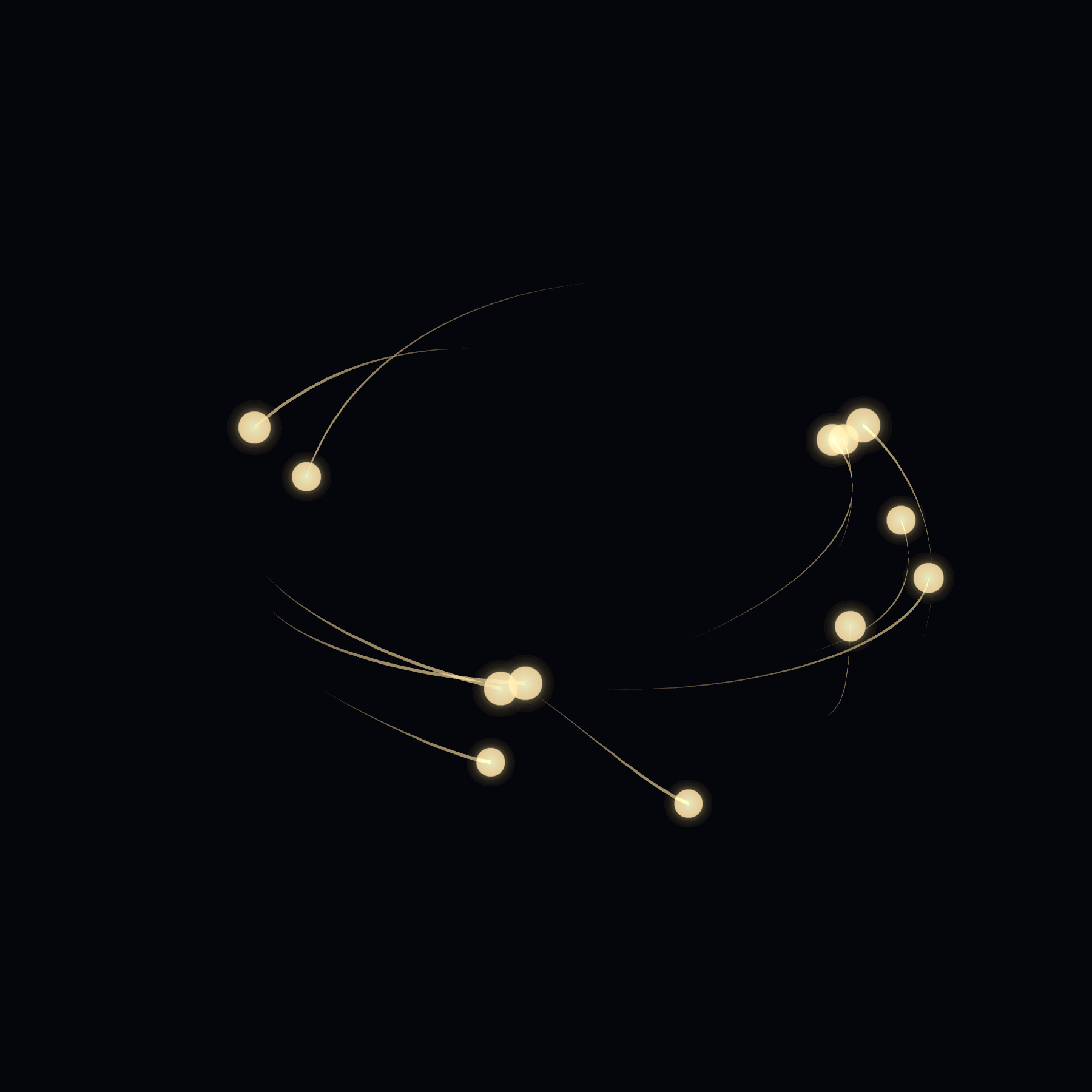
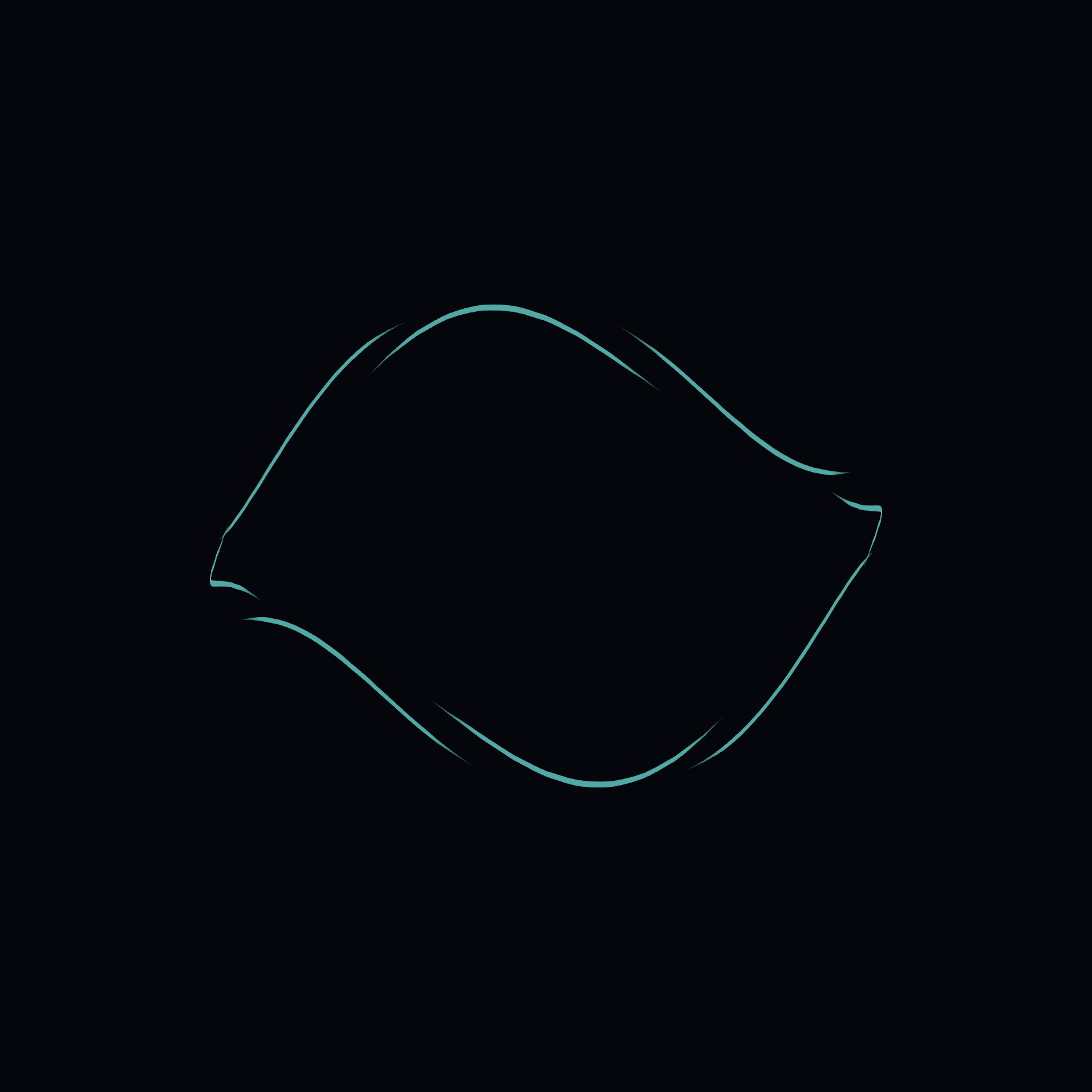
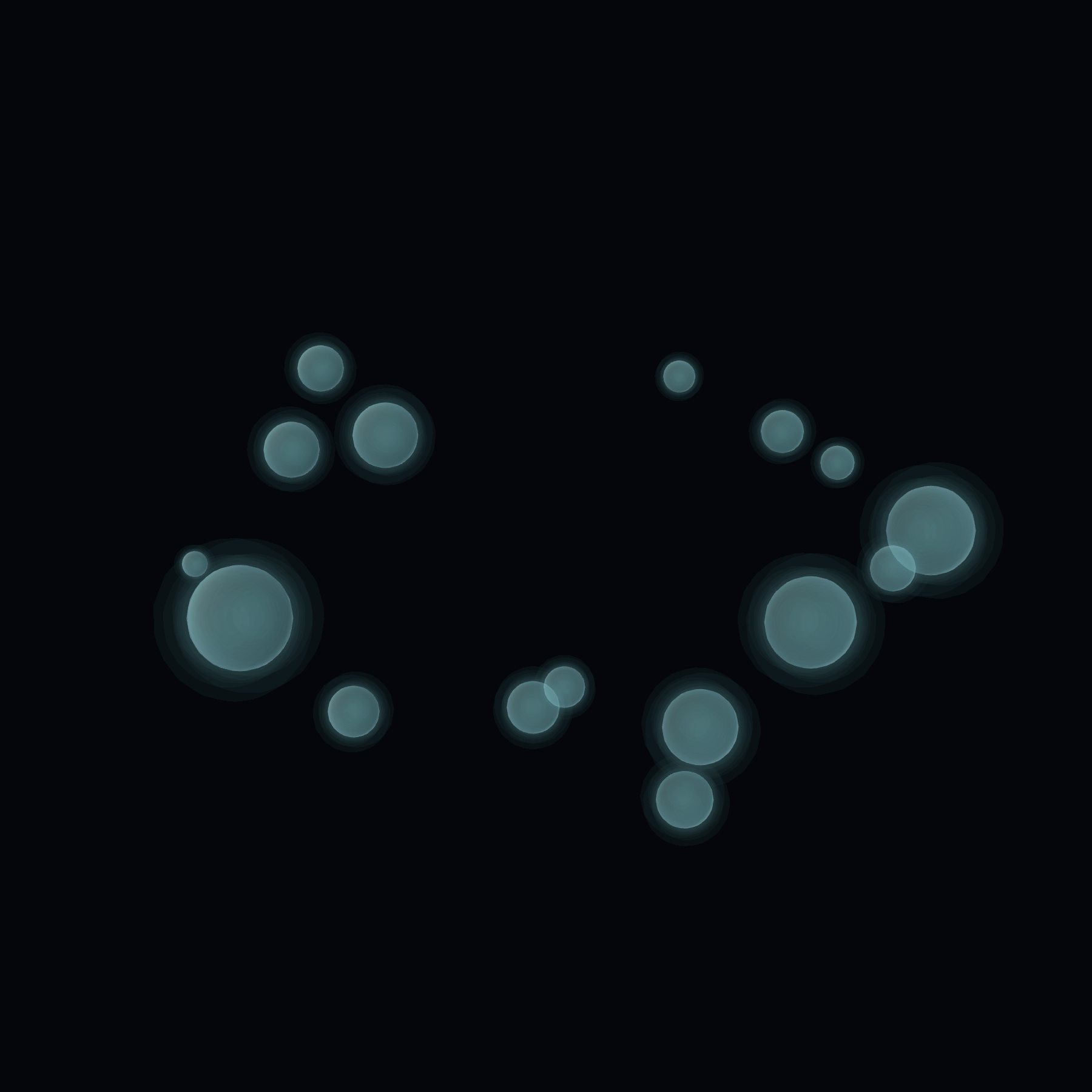
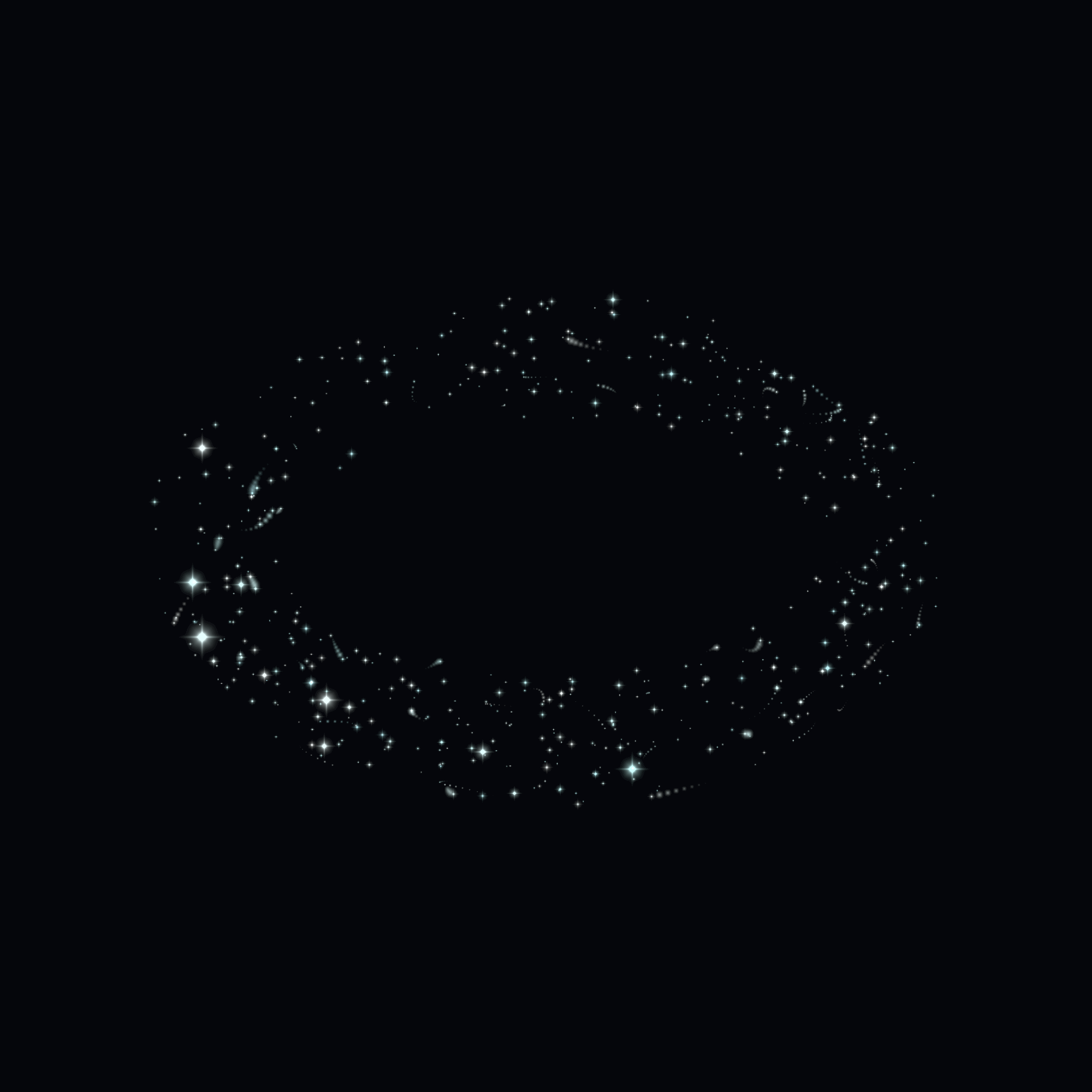
These are actual Unity examples, not additional bundled one-click presets. Energy lines have adjustable width; bubbles have a transparency control.
20 motions for ornaments and light bodies
Choose from gentle, spiral, hopping, formation and performance categories. Fit your assets with a calm motion first, then try a toroidal helix, hops or a collapse sequence. Clash motions are visual choreography, not physics collisions. Large assets may overlap.
A starfield with twinkle and small movements
Tiny four-point stars fill a hollow, three-dimensional ring. Appearance controls density, star size and ring thickness; Motion controls twinkle, flashes, movement and trails. The starfield has its own animation, while ornaments in a mixed style can use regular motion presets.
Random A / B / C
Select at least three compatible candidates to bake three different motions into an A → B → C loop. Loop duration covers all three sections. The selection is saved, not freshly randomized every cycle at runtime. Use the reshuffle control for a new combination.
05Free vs Pro
| Feature | Free | Pro |
|---|---|---|
| Base effects | Glow dots / hollow five-point stars | Particles / lines / bubbles / starfield |
| Motion | Calm Float / Wave Rider | 20 presets + Random A/B/C |
| Paths | Circle | Circle / Heart / Flower |
| Ornaments & custom assets | Not included | 20 ornaments; Prefab / Mesh + Material |
| Attachment, color & size | Adjustable | Adjustable |
| Grab & Gentle Sway | Not included | Optional; requires VRChat SDK |
| Time limit / watermark | None | None |
Free works without Pro. Both can coexist in one project, but do not edit each other’s generated halos. Check BOOTH for pricing and distribution terms.
06Troubleshooting
Shader missing, or everything is pink
Check that both Editor and Shaders were imported, then reimport the complete package. Pro lives in Assets/黒猫Dev/HaloMaker; Free in Assets/黒猫Dev/HaloLoomFree. Shaders must stay outside Editor. If it persists, include the shader error from Console and your environment when contacting support.
An existing halo is not detected
Select the actual Halo object in the Hierarchy and check the editing target at the top. Select halos individually when there is more than one. Avoid creating another halo until you have checked selection and Avatar assignment. A read-only legacy object can be kept while you configure a new halo.
Preview does not reflect my changes
Apply the changes first. If live apply is off, changing a field alone does not update the generated halo. Also check which halo is being edited.
Grabbing or sway does not work
Enable Grab & Gentle Sway in Pro’s Basic page, then apply. It requires the VRChat SDK. Normal animation preview does not simulate PhysBone grabbing. Check interaction permissions and behavior in VRChat. This moves the halo as a whole; it does not deform the ring into a soft loop.
The effect is expensive or too crowded
Reduce ornament count or star density and test with a lightweight asset. Check particles, multiple renderers and transparent overlap in custom Prefabs. A cost warning is not a complete performance diagnosis or FPS guarantee.
What should I keep when updating or deleting?
Back up the project before updating. Keep Generated controllers and their sub-assets while halos depend on them. Do not bulk-delete generated assets if you are unsure what uses them. Keep your source assets separately.
Will it look the same everywhere?
Images were captured in Unity Editor / Built-in / DX11. World lighting, cameras and transparent overlap can change the result. This does not establish support for every platform, including Quest, mobile or URP. Check your target avatar in its actual environment.
If you need help, include the edition, Unity version, reproduction steps and Console error when contacting us through the product page. View on BOOTH ↗